Capture One explained: RAW editing, color control and a better photography workflow
What Capture One does, how Sessions differ from Catalogs, where its color and AI tools help, and how to choose a licence around the work you deliver.
Capture One brings RAW development, photo organization, tethered shooting and delivery into one workflow. You can use it to edit a landscape from a memory card or run a commercial portrait session with a computer beside the camera. Its appeal becomes clearer when you follow a complete assignment: find the right frames, establish a consistent treatment, refine selected areas and export the files a client needs.
This guide draws on official documentation checked on 22 November 2026. GOBO has not benchmarked the software. Our recommendations explain where the documented tools could help and how to judge them with your own photographs.
What happens to your RAW files?
Capture One’s RAW explanation describes a non-destructive process: adjustments change the preview and saved settings while the original sensor data remains intact. The application renders a new file when you export. That lets you revisit white balance, exposure, curves and sharpening without repeatedly overwriting the source.
The practical consequence is that the RAW file alone does not describe your finished edit. Preserve the photographs and their Capture One project information together. Exported JPEGs are useful deliverables, but they are a different record from the editable project.
Sessions or Catalogs: choose before importing everything
The first significant decision is organizational. Capture One recommends Sessions for individual shoots and portable projects, while Catalogs serve collections that need organization across assignments.
A Session suits a product shoot you want to package and hand to a retoucher. A Catalog suits years of travel work that you want to search together. In a Catalog, understand whether originals are stored inside it or referenced in other folders; moving a database does not necessarily move every photograph.
Keep the active project on reliable local storage. Capture One advises against editing Sessions or Catalogs inside actively syncing iCloud, Dropbox, Google Drive or OneDrive folders. Make a separate backup of the completed project and originals, then verify that it opens.
| Decision | Session | Catalog |
|---|---|---|
| Starting point | One shoot or self-contained project | A collection spanning multiple shoots |
| Main advantage | Portable project folders and handoffs | Searching and organizing a continuing archive |
| Storage question | Did you copy every image and adjustment? | Are originals managed or referenced elsewhere? |
| Good first trial | A portrait or product assignment | A small, representative archive |
Color control is a reason to investigate
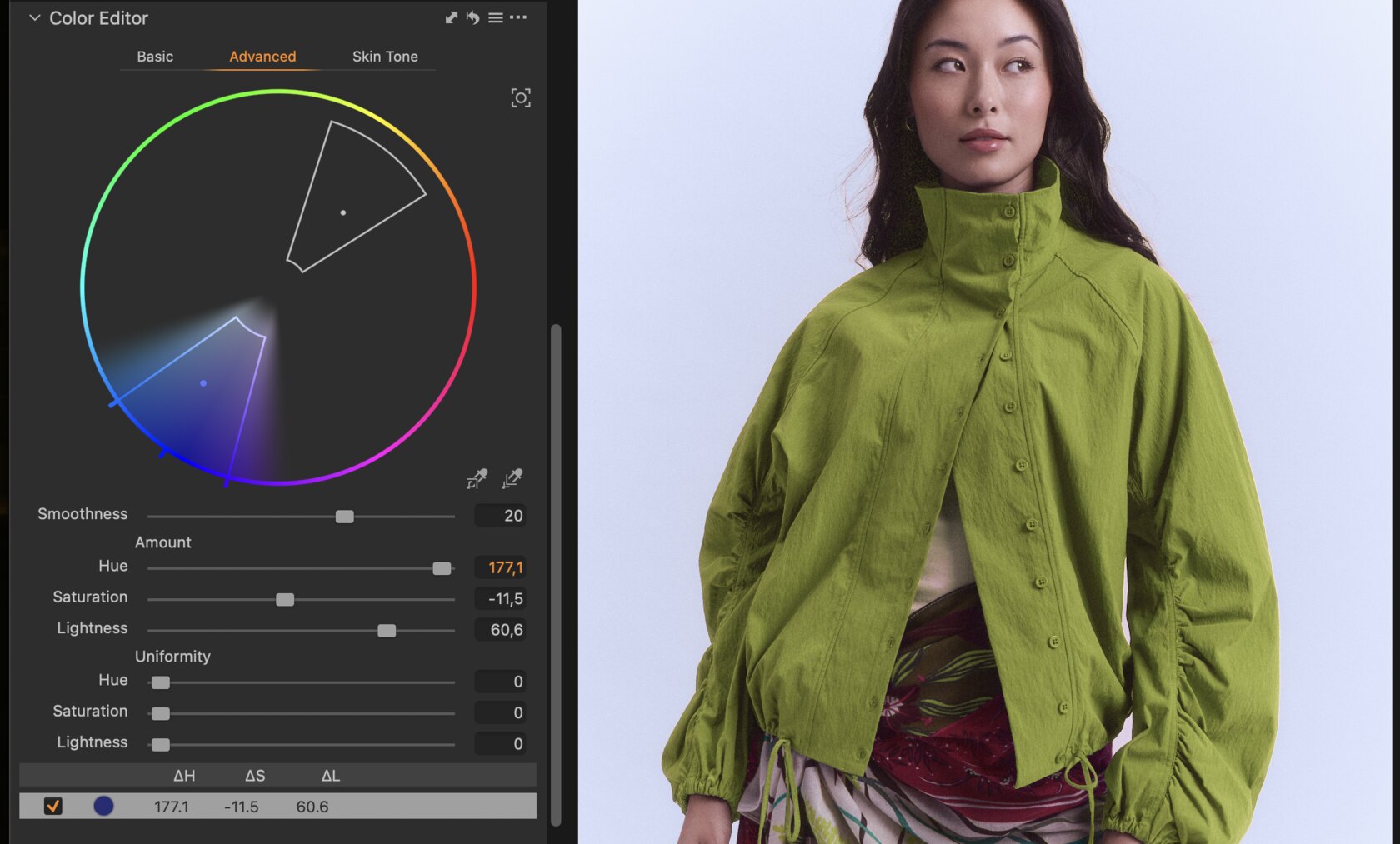
The 16.9 release notes document an expanded Advanced Color Editor, including Uniformity controls, a Target picker and editable RGB or HSL target values. These support tasks such as harmonizing a selected color range or matching a reference within a series.
Consider a clothing collection photographed under slightly changing light. A controlled color selection can help align the garments without applying the same shift to every background and face. The creative benefit is precision; the commercial responsibility is accuracy. Matching a screen value does not prove that the photographed fabric matches a physical sample under every light.
Start with white balance and a sensible overall rendering. Make selective corrections afterward, compare adjacent frames and inspect the delivery file. Claims that one converter has universally “better color” ignore profiles, starting settings, lighting and taste. Your own repeatable comparison is more useful.
Tethering connects decisions to the shoot
Tethering sends supported camera captures into the working environment for review. That can reveal a soft eye, a label reflection or a styling problem while the subject is still available. Our Hasselblad tethering article covers the recent compatibility development separately.
Check your exact camera, connection and operating system before relying on tethering. RAW-file support and tethering support answer different compatibility questions. For a small location assignment, importing a card afterward may remain the simpler arrangement.
AI masks help selective editing across a set
Capture One’s masking documentation describes subject, background, people and clothing selections, with masks recalculated when supported adjustments are copied between images. It also says AI masking works offline and permits manual brush or eraser corrections.
For a portrait series, that can provide a starting point for adjusting a face while leaving the room darker. It does not remove the need to inspect hair, glasses and clothing boundaries. Review different poses rather than approving a batch because its first frame looks convincing.
The latest checked release, 16.9.1, dated 18 November, adds editable masks for Body Skin Retouching alongside other changes. Retouch to an agreed brief: temporary distractions, permanent features and preferred texture deserve deliberate choices.
Where do Lightroom and Photoshop fit?
Capture One can be the main organizer and RAW editor in a photography workflow. Whether switching makes sense depends on archive migration, familiar tools, collaboration and recurring costs. Our software comparison maps those wider choices.
For detailed work in an external editor, understand Capture One’s two handoff commands. Open With sends the original without baking in Capture One adjustments. Edit With first creates a processed file, such as a TIFF or PSD, with those adjustments applied. Choosing the wrong command can make your color work appear to disappear.
Choose a licence by the tools you need
The current plans page lists desktop Pro, All in One, Studio, Mobile and a one-time Pro licence. Mobile access, collaboration and other capabilities vary across plans. Check the exact inclusions and regional checkout price rather than assuming every feature in a release announcement belongs to Pro.
The licensing guide distinguishes a perpetual licence for an eligible version and its related service updates from an active subscription that provides current versions. A perpetual purchase does not promise every future feature or camera. Include likely upgrades and any companion editor when comparing annual costs.
Finish one small assignment before migrating
Start with 30 representative RAW files. Include difficult skin tones, mixed light, a high-ISO frame and your normal subject. Select five, establish a consistent edit, try one local mask and send one photograph through your external editor.
Build two Export Recipes: an sRGB JPEG at the website’s required dimensions and a full-resolution file using the client’s agreed format and profile. Recipes save output settings and can produce multiple versions together. Reopen the exports, check filenames and color, then restore a copy of the project from backup.
Record the time spent selecting, correcting and delivering, including manual repairs. Capture One earns its place when those stages become more dependable for the work you actually sell or enjoy. The strongest reason to adopt it is a complete workflow that makes sense to you.