Organize your photo library: folders, filenames, keywords and catalogs
Create stable job identifiers, separate storage from selections and build an archive you can search without losing the link to your originals.

A photo library becomes difficult long before it fills a drive. One job lives under a client's name, another under a date, and a third in a folder called Final New. The same photograph appears in several places without a clear original. Organization begins by deciding how to identify an assignment, find a photograph and recognize its current purpose.
The method below separates physical storage, searchable information and working selections. Lightroom Classic provides a concrete catalog example; other applications arrange these functions differently. The suggested names and labels are a proposed household or studio convention, not a standard everyone must adopt. Choose something you can maintain when a busy week brings several shoots home at once.
| Layer | Purpose | Example convention to adapt |
|---|---|---|
| Physical folders | One main location for the originals | Year and stable assignment identifier |
| Filenames | A durable image identity | Job, camera identifier and sequence |
| Descriptive metadata | Retrieve images through their content | Verified place, activity and project |
| Selections and status | Track the current working decision | Selected, ready for review or delivered |
| Archive note | Explain the system to a future reader | Naming rules, exports and rating meanings |
Give each assignment a stable identity
Use a short job identifier that stays constant from ingest to delivery. For example, 20261121-MARKET could identify a particular documentary visit. Add a client or location description where helpful, while avoiding names that expose sensitive information unnecessarily. An identifier distinguishes the job even when you photograph the same person or place again next month.
Choose one main physical home for its originals. A year followed by an assignment folder is a reasonable starting arrangement. A multi-day project can retain one identifier with dated subfolders; a personal archive might use date and place instead. Write down how you handle exceptions. Consistency in the next twenty imports matters more than finding a theoretically perfect hierarchy today.
Understand what the catalog actually holds
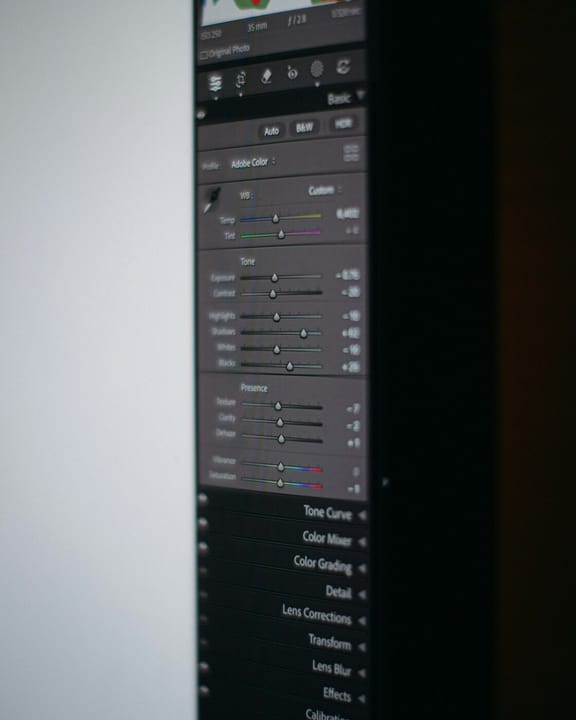
Adobe describes a Lightroom Classic catalog as a database containing file locations, processing instructions and metadata such as ratings and keywords. Importing creates a relationship between a photograph and its record. A visible thumbnail therefore does not prove that the original is currently connected or available. Know where both the catalog and the source images live.
This distinction changes how you troubleshoot. If photographs appear offline after a drive move, first establish whether the originals still exist and whether the application points to their current location. Do not immediately import another copy of the whole archive. That can create a second set of records while leaving you uncertain which contains the editing work you wanted to preserve.
Choose names that survive the round trip
Keep a unique filename or an explicit mapping between the camera original and every proof. A convention such as 20261121-MARKET-A-0142 can combine a job identifier, camera identifier and sequence. Test for collisions when two cameras restart their numbering. Preserve the original extension, and rename through a method that also maintains any associated sidecars correctly.
Once a client or collaborator begins referring to those identifiers, keep them stable. Describe an export's purpose with a suffix or a separate delivery folder, for example 20261121-MARKET-A-0142-web. Repeatedly renumbering the remaining photographs after each edit makes an old approval list harder to interpret. The filename should continue identifying the image even when its ranking or delivery version changes.
Let metadata answer questions folders cannot
A folder generally gives a photograph one physical location. Searchable descriptions let you retrieve it through several questions: who is shown, what happened, where it happened and which project it belongs to. IPTC's metadata guidance distinguishes descriptive information, people, locations and rights-related fields. Use appropriate fields for those purposes instead of trying to squeeze every fact into the folder name.
Start with a modest vocabulary you will actually enter. For a market story, useful terms might include the verified location, the project name and relevant activities such as unloading or preparation. Add a factual caption when the frame needs context. Avoid keywording every visible object simply because you can. A future search benefits from accurate, selective information more than an impressive-looking cloud of loosely related terms.
Separate quality judgments from project status
Decide what your ratings mean. A star could express photographic strength, while a named collection or label tracks selection for a particular assignment. Keep those meanings distinct. An excellent photograph may remain unused because the client needs another crop; a useful record shot may need delivery despite having little portfolio appeal. One ranking scale struggles to express both decisions.
Write a small legend, such as Selected for editing, Ready for review and Delivered, using the features your application offers. For each project, keep the final approved selection identifiable. If you use several saved groups, name their purpose and current version. The test is whether another authorized collaborator could open the project and identify which photographs require action without asking you to decode the system.
Move files with the application's relationships in mind
In Lightroom Classic, Adobe's documented folder-move procedure moves files on disk and updates their location in the catalog together. Use the application's supported management tools when appropriate. If you move material externally, follow its documented method for reconnecting the existing records. Confirm a small representative project before reorganizing an entire archive across drives.
Keep a recoverable copy before a substantial reorganization. Adobe also states that its catalog backup does not independently back up the photograph files. Our backup workflow guide covers recovery planning in detail. Here the practical distinction is that a tidy archive and a protected archive are separate achievements; moving folders does not establish that either the originals or editing work can be recovered.
Improve one recent project before migrating years
Choose a completed, low-risk assignment and apply the proposed convention. Find an original, locate its approved edit and identify the delivered file. Then try three searches you expect to make later, such as a person, an activity and a client project. Note where the vocabulary or naming failed and revise it before spreading the system across older material.
Keep a short archive note describing folder structure, filename rules, rating meanings and export locations. At the end of a project, record what was delivered and any agreed retention arrangement. You do not need to finish cataloging every historical photograph before improving tomorrow's ingest. A library becomes useful through repeated, understandable decisions that make the next retrieval easier.